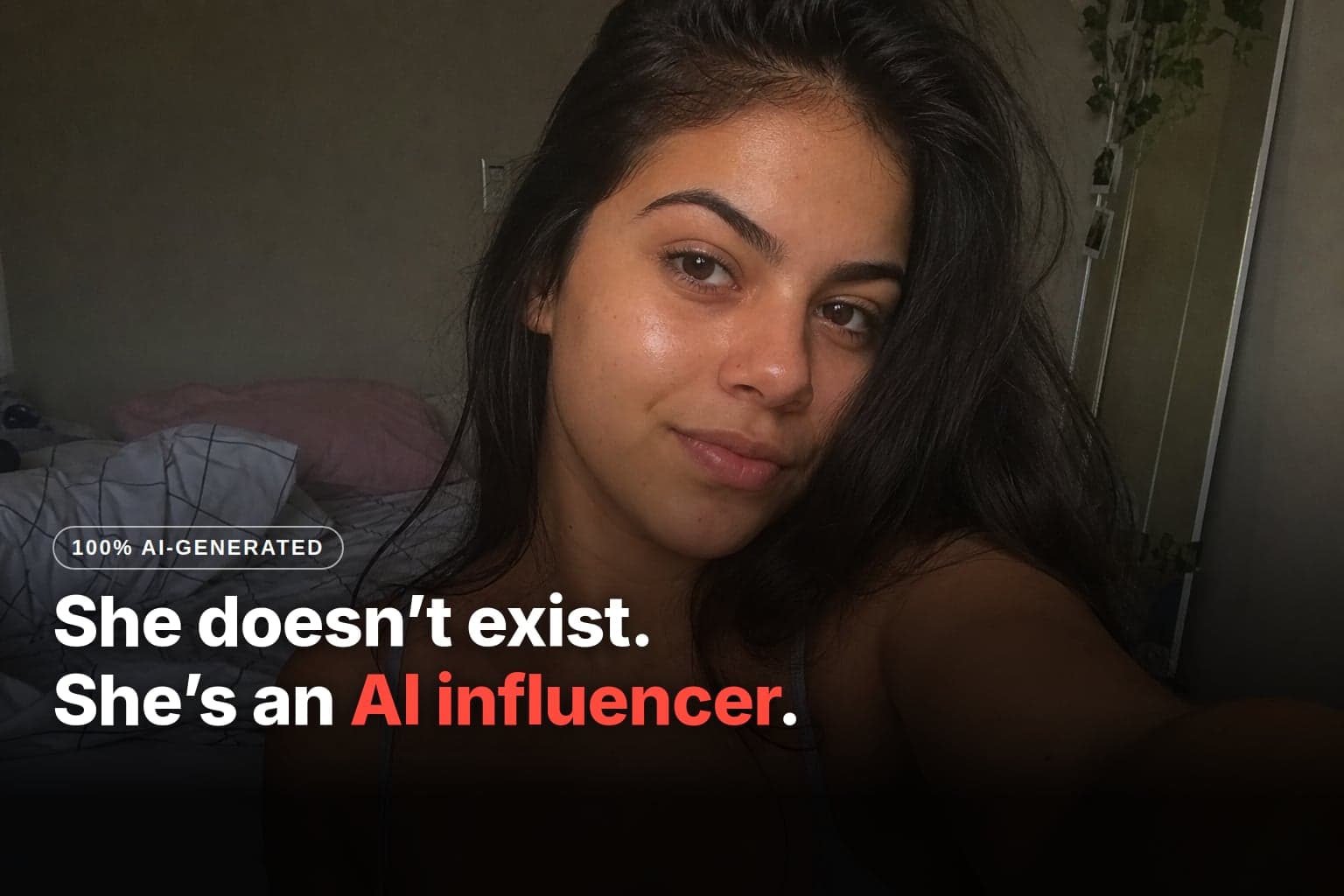
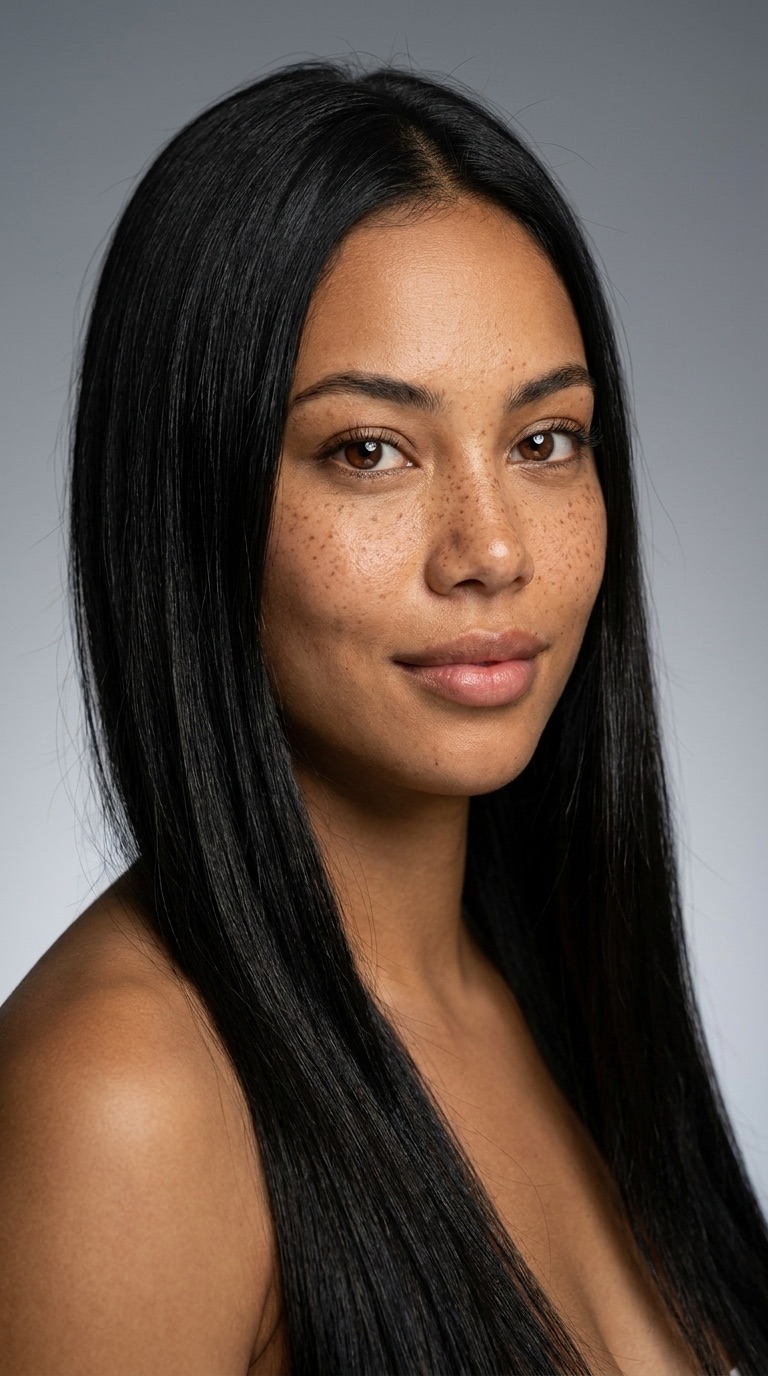
I created a 100% AI influencer from scratch and generated these two photos of her on the same day. Same person, but the one on the left reads as AI from a mile away, and the one on the right looks like a phone selfie. Here's the comparison:
 Before
 After
AfterThe difference was never the tool; it's exactly what you ask it for. I built Lia from scratch in Avatrix, a Brazilian AI platform for creating virtual influencers, in June 2026, and took notes on every step. In October we revised the guide: the video tool changed, a new character creator arrived, and we added a section on when to disclose that the content is AI.
How do you create the influencer's Reference Image in the image generator?
The whole workflow rests on one thing: a good Reference Image. It's your influencer's first realistic image, the one that defines the face that will repeat across everything, and the one every later generation pulls the face from. You create it in Create Influencer, which walks you through 11 attribute steps before it unlocks the generate button. What comes out is her identity: a face that exists and that you can repeat. Here I defined Lia: Brazilian woman, 24, mixed-race. I like this path precisely because it won't let you skip steps, and a poorly defined influencer produces vague content.
How to do it: in the side menu, click Create Influencer.
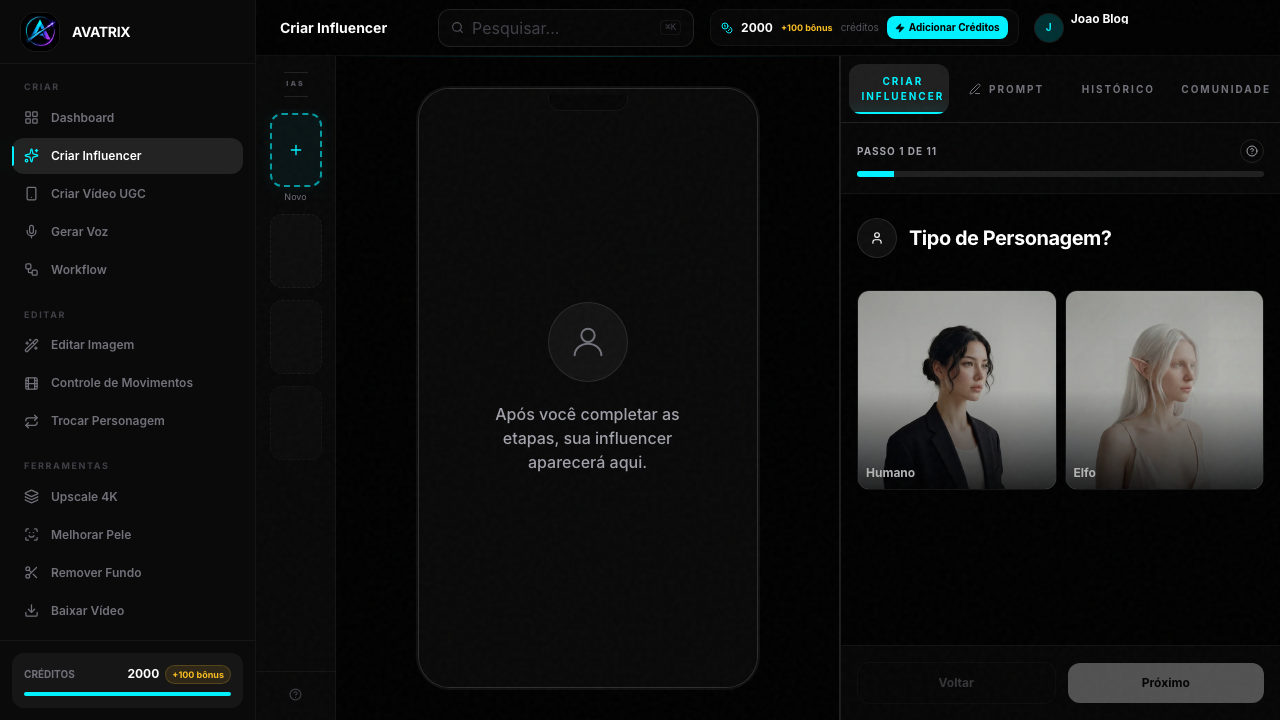
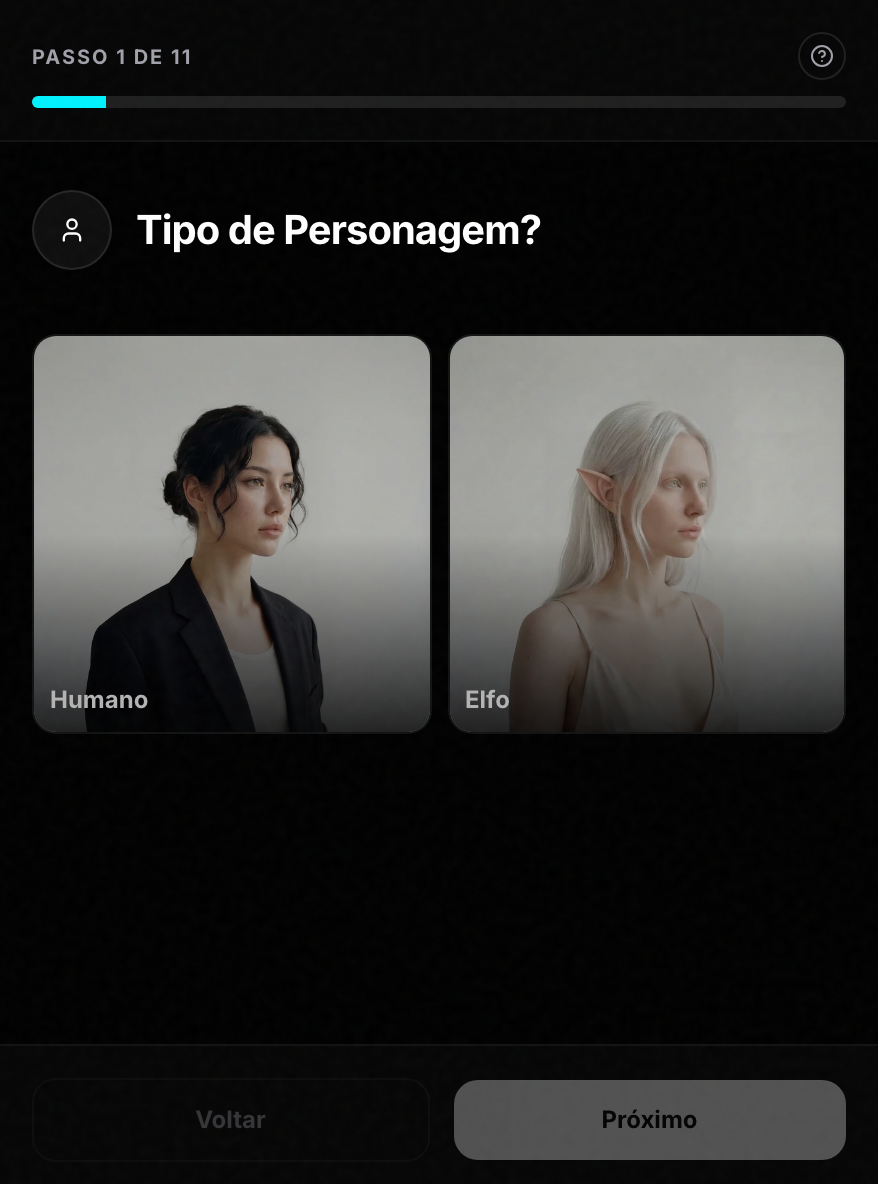
The panel opens on the first step and takes you through all 11 in order. Three things to look at:
- The "Step 1 of 11" bar — it won't let you skip a step.
- The "Character Type?" attribute — Human and Elf cards. I picked Human.
- The "Next" button — moves you through the attributes. "Generate" only unlocks on step 11.
Of the 11 steps, two deserve attention. In Ethnicity, I picked Mixed:
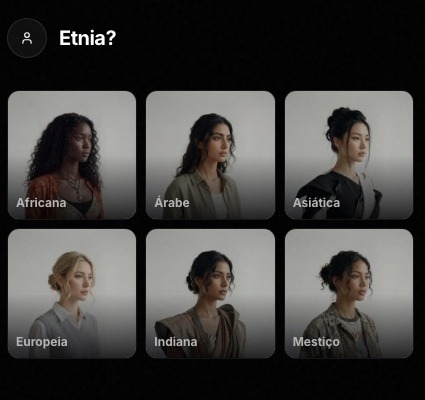
In Skin, I picked Freckles, but notice that Skin here is just one more attribute, like Gender, Age, or Eye Color. Real realism does NOT come from here: it comes in step 2, with the raw prompt.
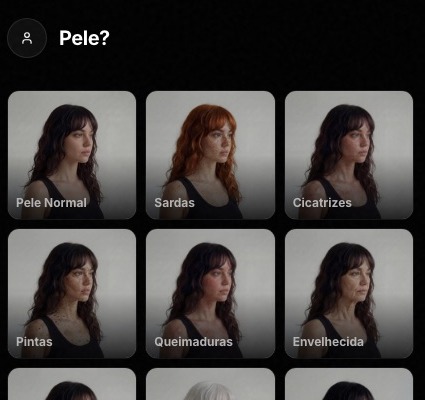
In Art Style I always pick Hyperrealistic, because the influencer needs to pass as a real person. I completed the 11 steps and generated. This came out:
Smooth skin, gray studio background, ad-campaign look. It looks like AI, and that's expected. This isn't the photo that goes on the feed. It's Lia's Reference Image, the one everything else rests on.
How do you take the AI look out of a generated photo?
You remove the AI look in the Prompt tab: attach the Reference Image, paste a raw prompt written like the description of a real photo, and the same person comes back as a phone selfie. This is the step that separates a believable profile from one that gives itself away on the first photo: the reference alone looks like a skincare ad, and here you force skin realism on top of it.
How to do it: at the top of the screen, click the Prompt tab.
In the Prompt tab, you work top to bottom, in three spots:
- "+ Attach reference" — this is where the Reference Image goes in (the 0/4 images counter shows the limit). Check that the thumbnail appeared before you generate.
- Text field — where the raw prompt goes.
- "Generate influencer" button — I click it only after the thumbnail shows up and the prompt is pasted.
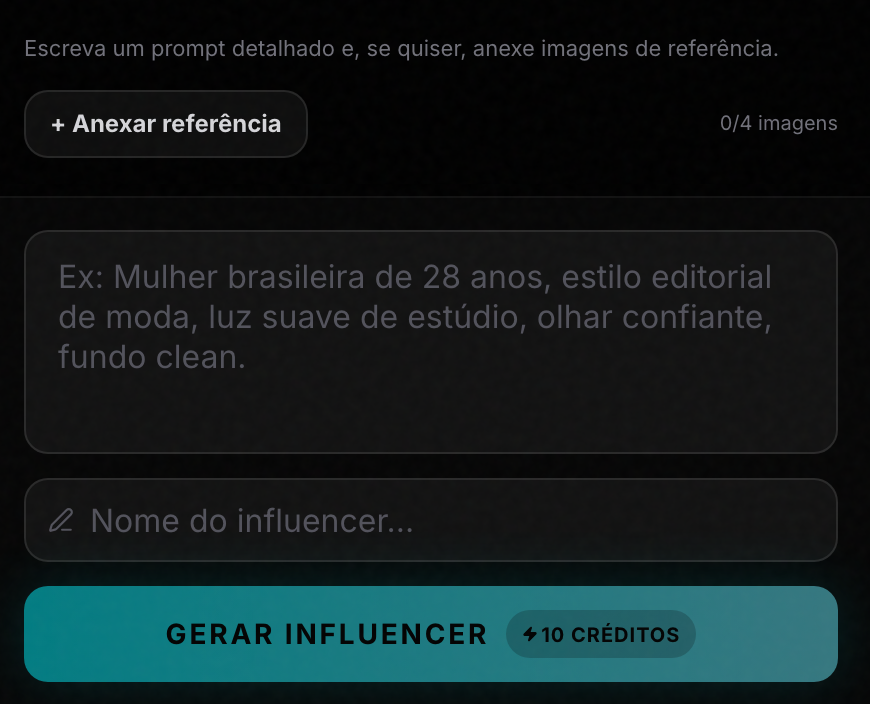
One thing before you copy the prompt: Avatrix doesn't have a separate field for what you DON'T want, so the negations ("no studio lighting," "no plastic skin") go inside the positive text itself. That's how you kill the plastic sheen: asking for the real thing and ruling out the fake one in the same sentence.
The prompt, ready to copy (it's the prompt I ran on Lia). The identity doesn't come from the text, it comes from the attached reference, so you reuse the same realism prompt with YOUR reference and adjust only what you need:
Use the attached reference image as the EXACT identity (same face,
same skin, same hair, same proportions — do not modify the identity).
Amateur front-facing phone selfie, taken inside a simple, slightly
messy Brazilian bedroom, near a large window during the day.
24-year-old woman. Extreme skin realism: clearly visible pores,
slight oiliness and natural shine on the forehead, nose and cheeks,
subtle micro-texture and micro-imperfections, a few loose strands of
hair, natural texture under the eyes, slightly uneven pigmentation,
no makeup. Relaxed, natural expression. Diffused natural window light,
accurate white balance, slight phone sensor grain, slight softness at
the edges, slightly crooked, off-center handheld framing. Looks exactly
like a real, unedited Instagram story, completely photorealistic and
indistinguishable from a real human, raw unedited photo. No studio
lighting, no glamour, no retouching, no smoothing, no perfect plastic
skin, no perfect symmetry, no skincare-ad look.
And this came out: the same Lia, now looking like a phone photo.
Why does this prompt work? Two reasons, and both push against what the AI does on its own:
- Light needs a source. Light that comes evenly from everywhere is what the brain reads as a drawing. That's why the prompt asks for
diffused natural window light: the light gets an origin, the face gets natural shadow, and the eye reads that as a real photo. - The AI needs permission to be imperfect. It drifts toward smooth skin and an overly perfect face, which is exactly what gives away that it isn't real. You force realism by asking for the flaw:
visible pores, slight oiliness on the forehead, a few loose strands. If the request is vague, the model throws the texture away and the waxy face comes back.
Tip from experience: the most expensive mistake here is generating without the Reference Image attached. Without it, the Prompt tab generates from scratch: the AI invents a face out of nowhere and you get a different person. The worst part is that the button works and the photo looks good, so you only notice later. In one of my first attempts I generated without noticing the reference hadn't gone in. This came out:
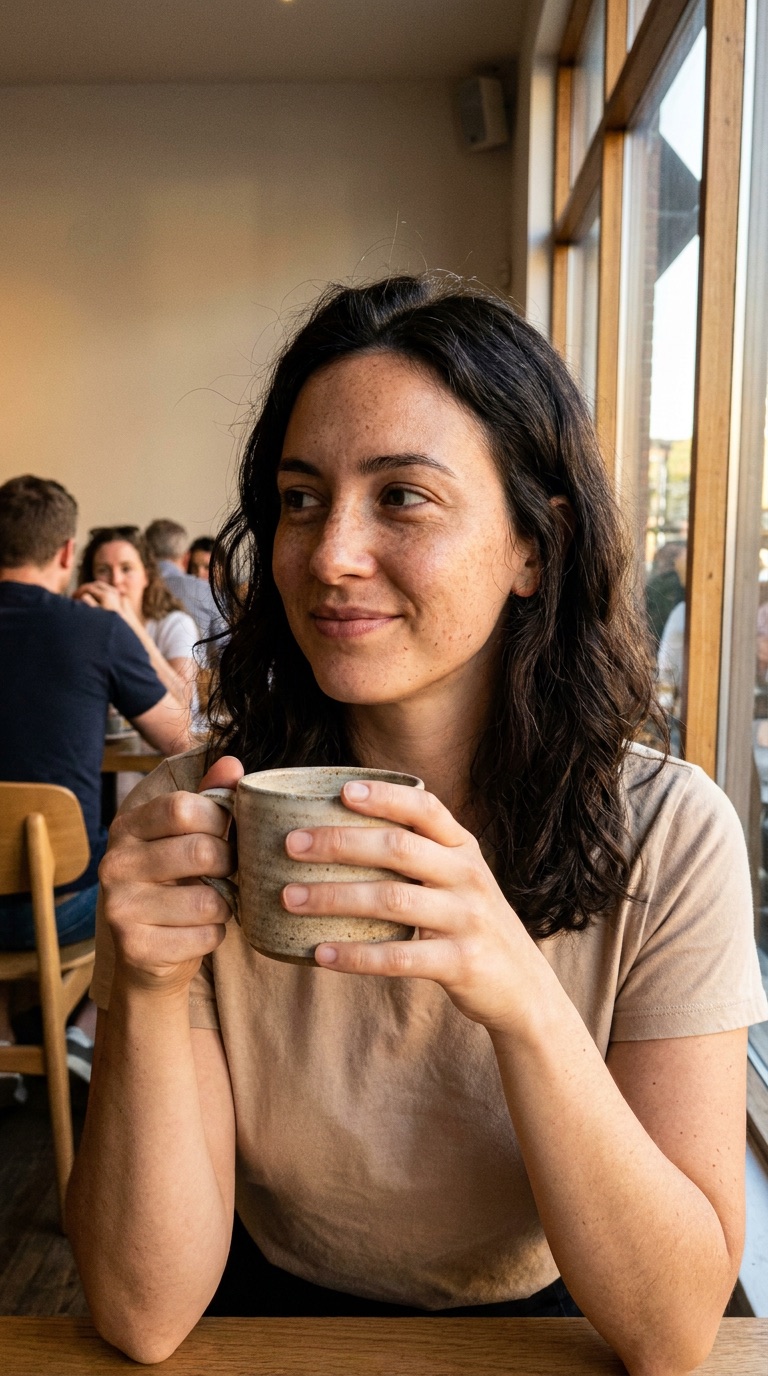
A different person from Lia, with a stock-photo look: 10 credits wasted. The rule: always check the thumbnail before generating. Checking takes two seconds.
Image model · 9:16 · 10 credits.
Advanced tip: use Skin Enhancer as a rescue. There's a Skin Enhancer button next to your images, and it's easy to misread. It isn't a retouch to make skin prettier; it's the opposite: it rescues a photo that came out plastic by adding pores and texture to overly smooth skin. On the Reference Image from Create Influencer, it pushed the photo toward real; on a Lia that already came out raw from the Prompt tab, it barely changed anything. Don't run it by default on skin that already looks right.
Skin Enhancer: 18 credits · single mode.
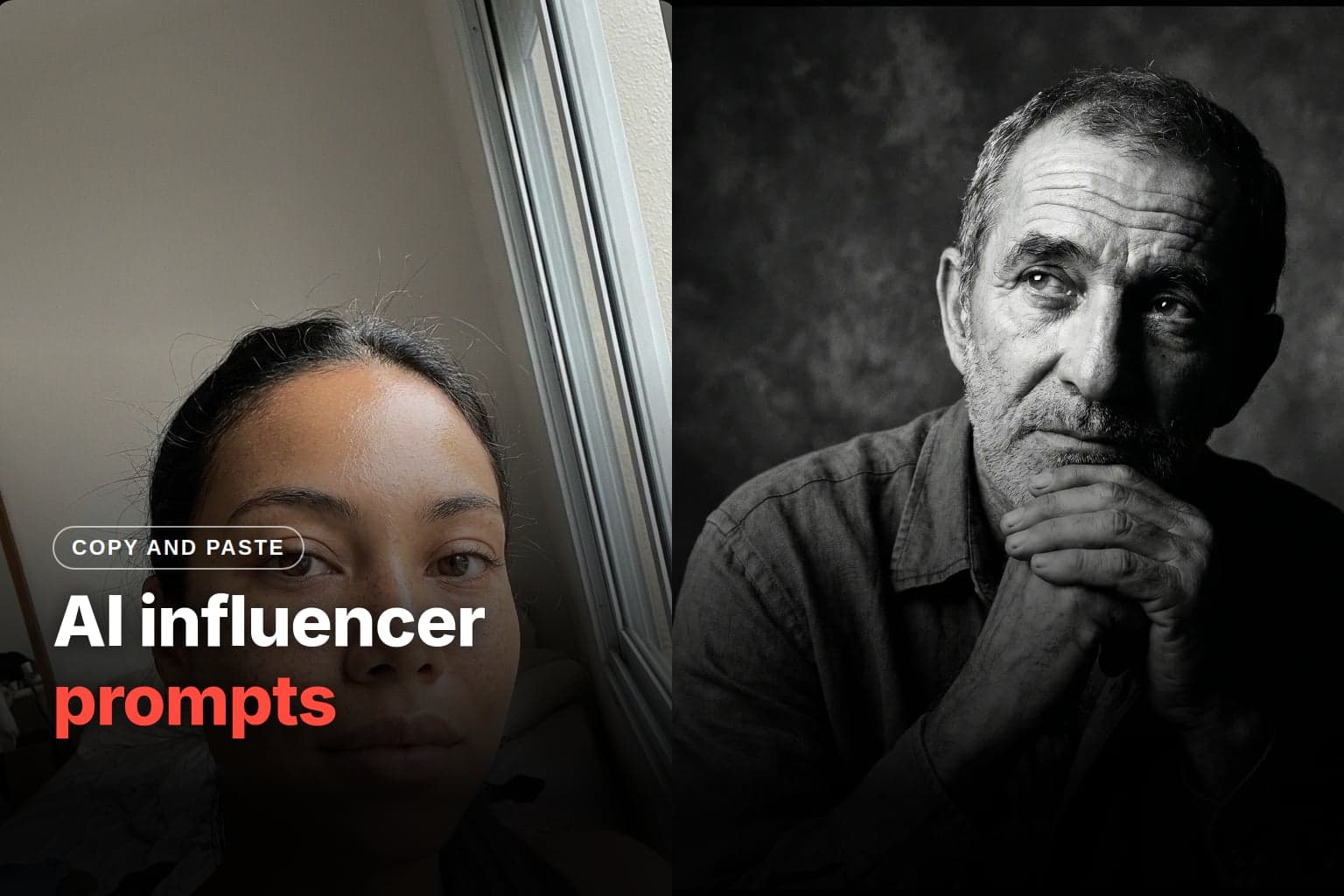
More than 40 ready-to-use prompts by scene, with the same skin and light technique, are in prompts for a realistic AI influencer.
How do you keep the same face in every photo?
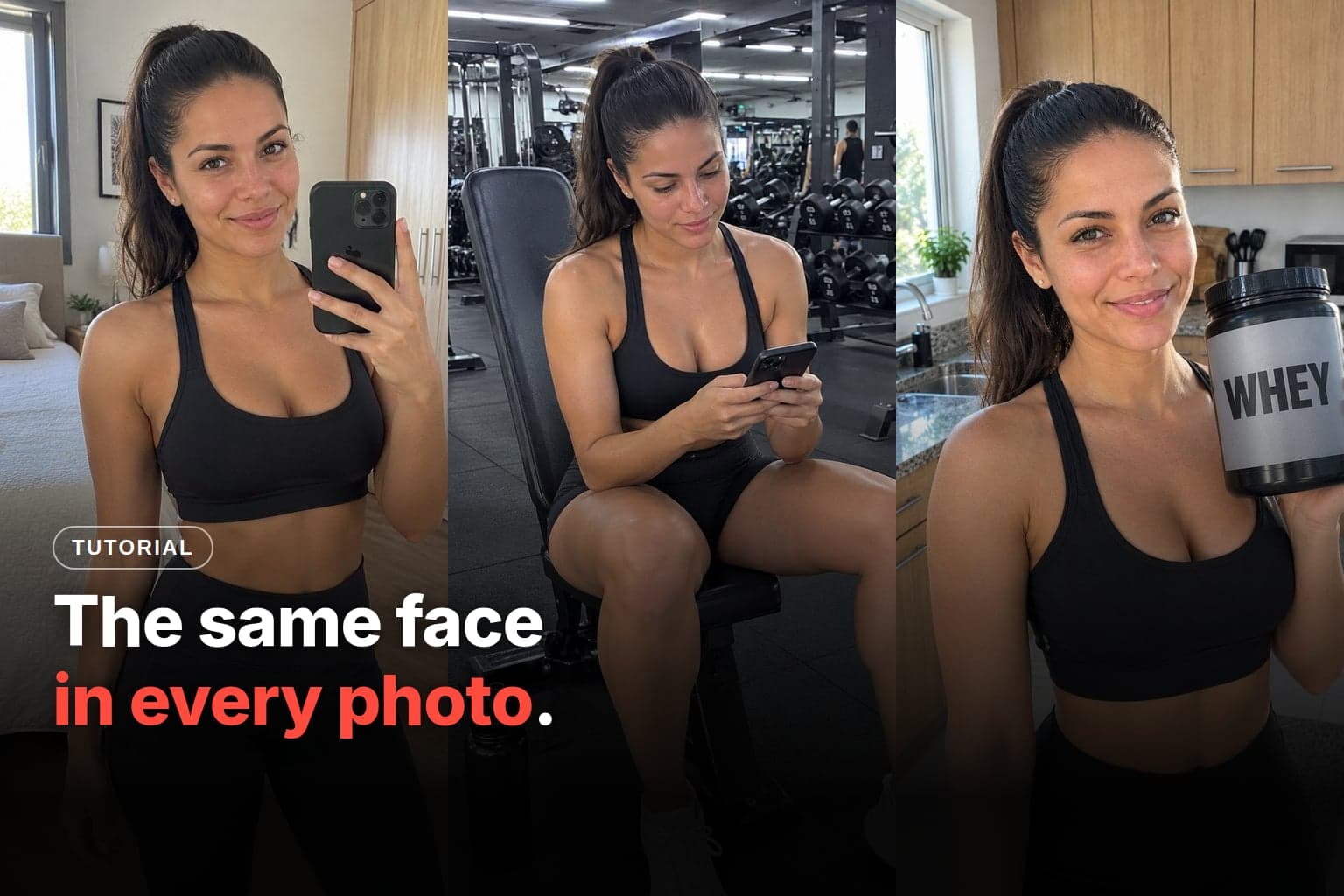
You keep the same face by re-attaching the same Reference Image in every generation. Avatrix doesn't memorize your influencer's face: what holds it from one photo to the next is the reference you attach. That's what turns loose photos into a believable profile: dozens of images that look like the same person in different settings.
Here's Lia in two different scenes, generated by re-attaching the same reference. The same face in both:
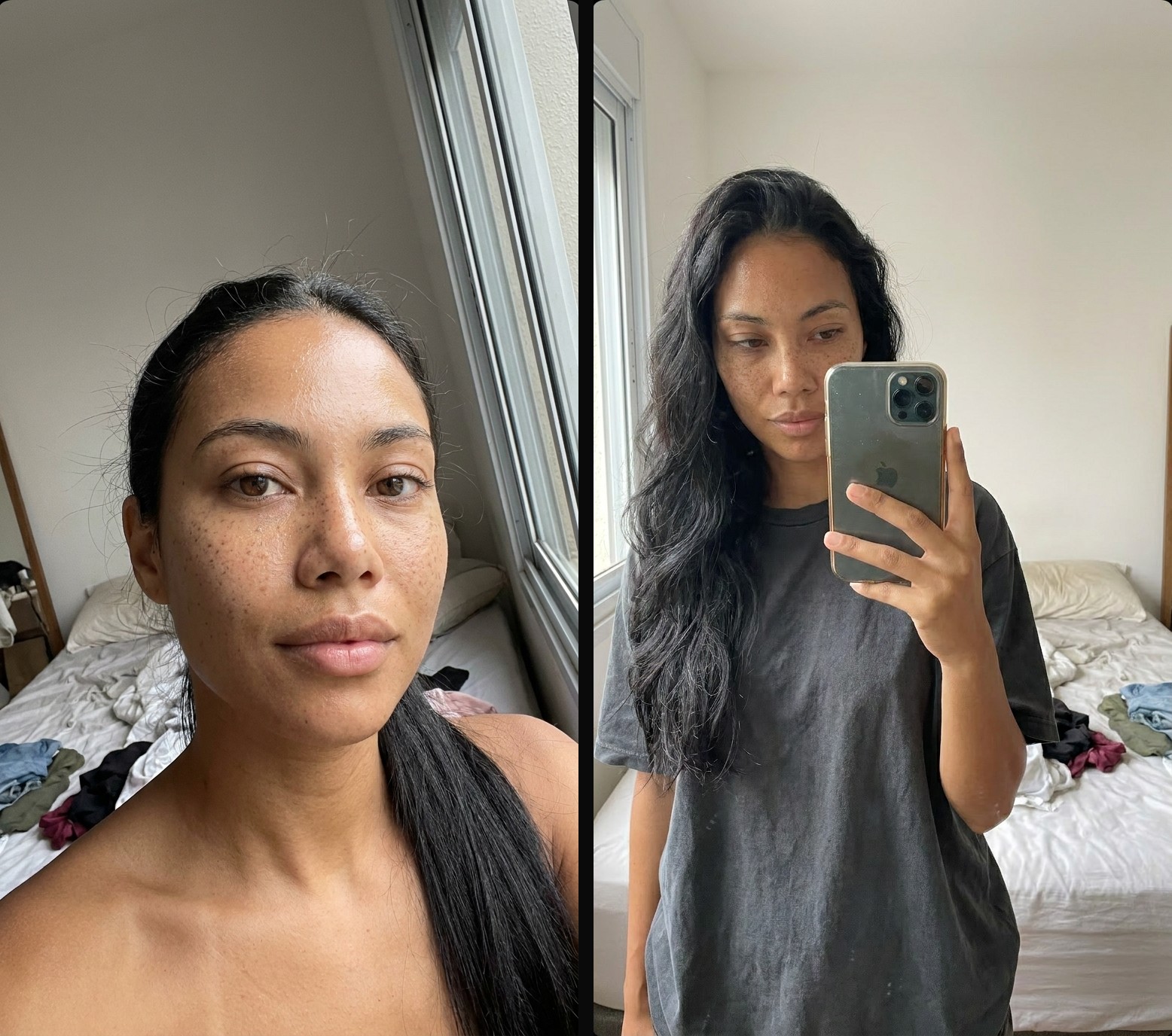
You don't need a pile of images: one reference already works. What holds the face is ALWAYS re-attaching the same one, not the number of images.
And for a new scene you don't need a new prompt: it's the same prompt from step 2. Since the identity comes from the reference you re-attach, you can reuse the whole bedroom prompt and swap only the scene line. The rest (identity through the reference, skin realism, phone framing) keeps holding the face. Notice the comment marking the exact spot you edit:
Use the attached reference image as the EXACT identity (same face,
same skin, same hair, same proportions — do not modify the identity).
Amateur front-facing phone selfie, taken inside a simple, slightly
messy Brazilian bedroom, near a large window during the day.
<<< the line above is the SCENE line — swap only that to change the setting; the rest stays the same >>>
24-year-old woman. Extreme skin realism: clearly visible pores,
slight oiliness and natural shine on the forehead, nose and cheeks,
subtle micro-texture and micro-imperfections, a few loose strands of
hair, natural texture under the eyes, slightly uneven pigmentation,
no makeup. Relaxed, natural expression. Diffused natural window light,
accurate white balance, slight phone sensor grain, slight softness at
the edges, slightly crooked, off-center handheld framing. Looks exactly
like a real, unedited Instagram story, completely photorealistic and
indistinguishable from a real human, raw unedited photo. No studio
lighting, no glamour, no retouching, no smoothing, no perfect plastic
skin, no perfect symmetry, no skincare-ad look.
(It's the same block from step 2: the only thing that changes is the scene line, marked above.) For example, for her in a café in the afternoon, replace the bedroom line with in a café, table by the window, late-afternoon light. For her on a street at night, on a sidewalk at night, streetlight and a shop window behind. The face doesn't move because it isn't in the text: it's in the reference you re-attach.
The other ways to lock the face (character reference, a trained LoRA, face swap), and what goes wrong with each one, are in how to keep the same face with AI.
How do you animate the influencer in video?
You animate the influencer from her photo, and today Avatrix has two paths for that. In UGC Video, which uses AI Video 1, you describe what she says and does, and the video inherits the face from the photo. In Motion Transfer, you take a video that already exists (a dance, a trend) and put your character in it. The Motion Transfer walkthrough is in the guide to the new AI influencer creator.
October 2026 update: the Lia video below was generated in June in Motion Control, which used AI Motion 1 at the time. That tool was replaced by Motion Transfer, and anyone who opens the old address lands there. In Motion Transfer you choose the quality (Low, Medium, or High) and Avatrix picks the model behind it.
I ran the video with Lia dancing, and here's how it came out:
That video taught me the most important lesson of the whole process, and it cost me a bad generation to learn it: the photo you upload drives the result, not the prompt. I copied the movement from the same Motion Library clip in both attempts; the only thing that changed was the photo I uploaded.
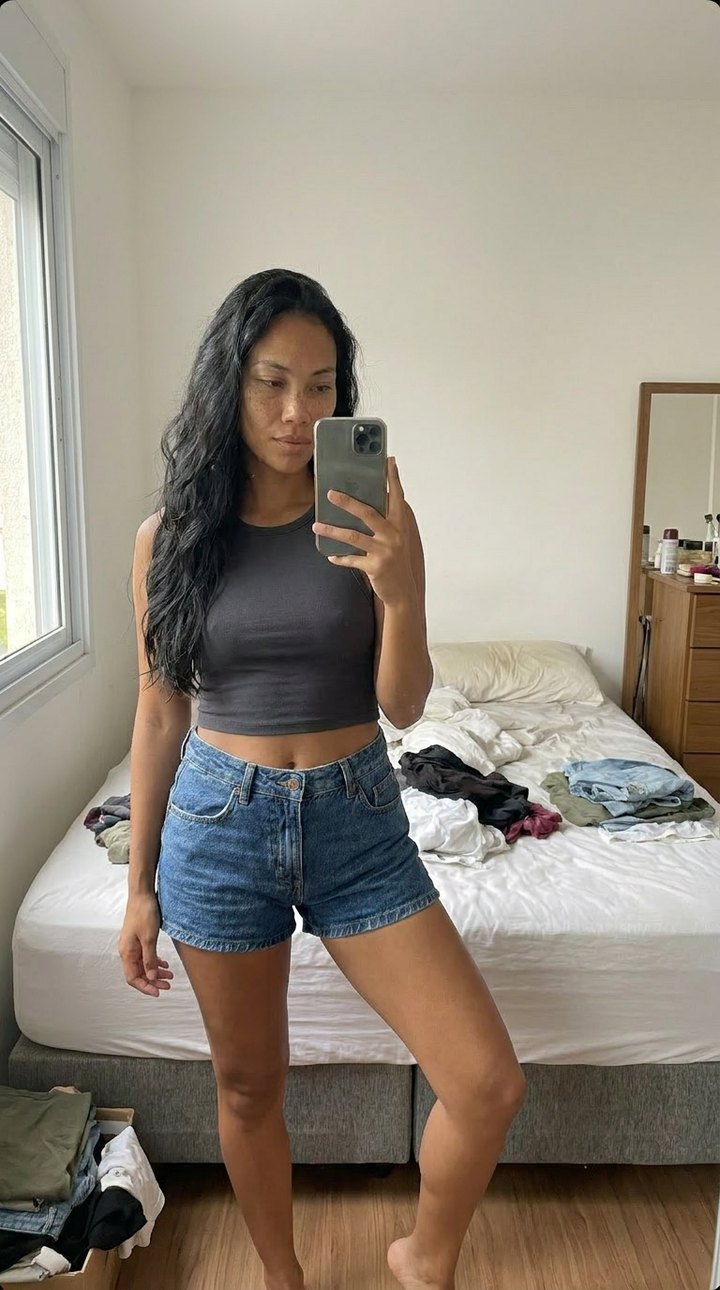
On the first attempt I uploaded this photo: a mirror selfie of Lia, holding the phone in front of her body, with the unmade bed behind her.
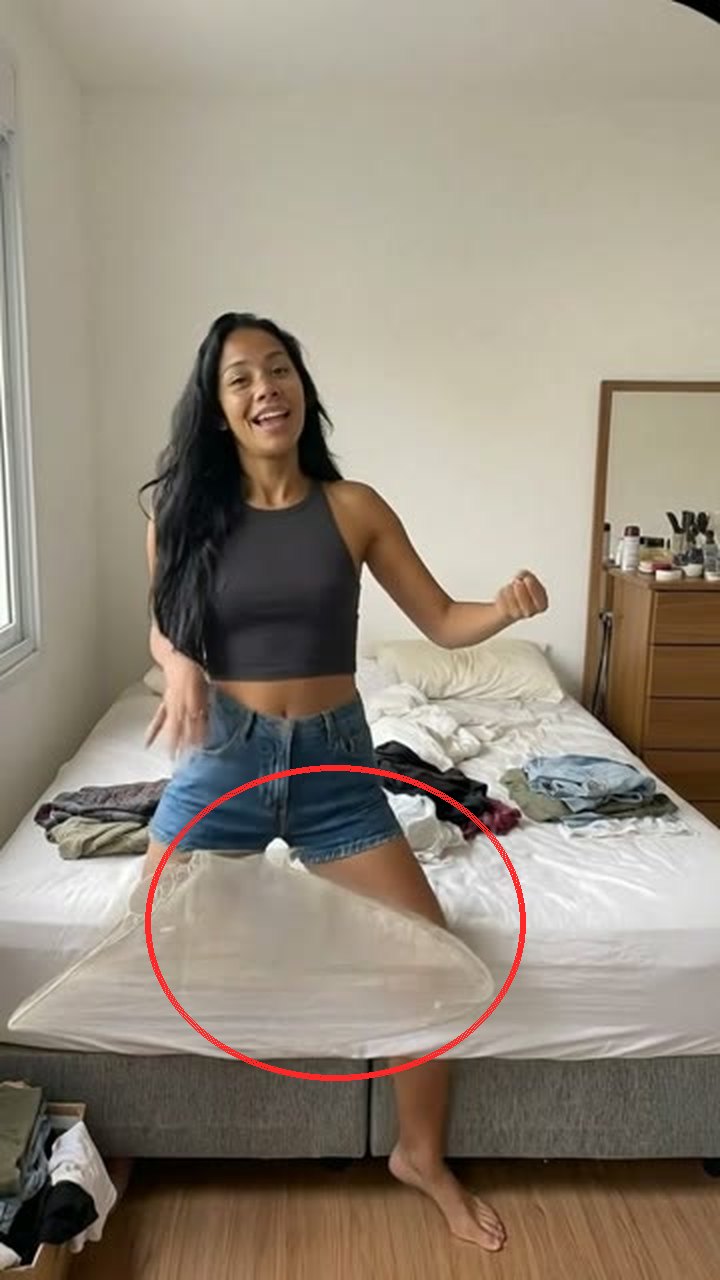
And the video was a disaster. A white blur appeared floating in front of her (the model tried to erase the phone and invented an object, circled below), and at one point she teleported from standing to kneeling, because the unmade bed pulled her there:
The fix was swapping ONLY the photo, with the same Library clip. I uploaded Lia standing, facing the camera, empty-handed, in a clean bathroom that matched the movement:
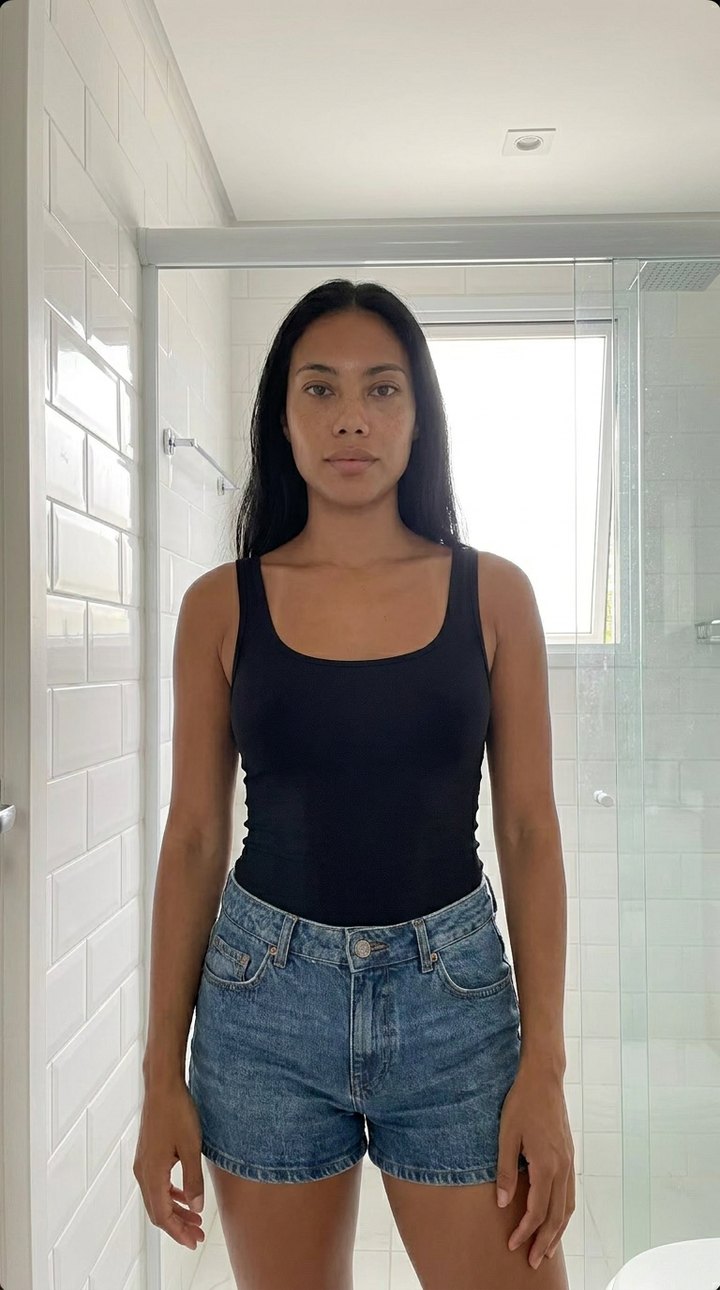
And that produced the video above: no blur, in the bathroom the whole time. Same influencer, same movement; only the input photo changed.
The lesson I learned in practice: in the photo you upload for video, use a neutral pose, nothing in her hands, a clean background, and a setting that matches the movement. Anything covering the body in the photo (a phone in front, crossed arms) turns into a defect in the video.
How do you publish and monetize an AI influencer without showing your face?
You monetize an AI influencer through the same paths as a human creator: affiliate links, brand partnerships, and your own product. But none of them starts on the first post. The audience comes first, and nobody can guarantee how much it will bring in.
That's why this guide doesn't promise you revenue. It shows the creation, step by step, and it has no sales case with a dated screenshot to show you. An income figure without proof is the first thing you should be suspicious of in content about AI.
Where and how often to post. The influencer needs a home of her own: a dedicated profile on TikTok, Instagram, or wherever her niche lives. Set a pace you can keep (one post a day sustained for months beats ten in one week and then silence). Since the content already came out in batches, you can schedule well ahead. From there, track what performs and double down: if a format takes off, make more of it. Testing is cheap, because you generate variation after variation without paying a model or booking a photo shoot.
How an AI influencer gets monetized. There are three paths, and each one needs a different kind of attention:
- Affiliate links — the most direct way to start: a product link in the bio and in the content, and the commission comes in when someone buys through it. You can start with programs like TikTok Shop's or Amazon's, each with its own entry rules (and country availability) on its official page.
- Brand partnerships — they come after the influencer has an audience. This is where the same face in every photo, which you built step by step, becomes an asset: brands want a recognizable face. A paid post has to be identified as advertising (more on that in the next section).
- Your own product — a digital product or a community in her niche. In the niche AI influencer guide, we show how the big profiles in the health niche monetize, with affiliate links in the bio and their own digital product, and how to recreate the format in Avatrix.
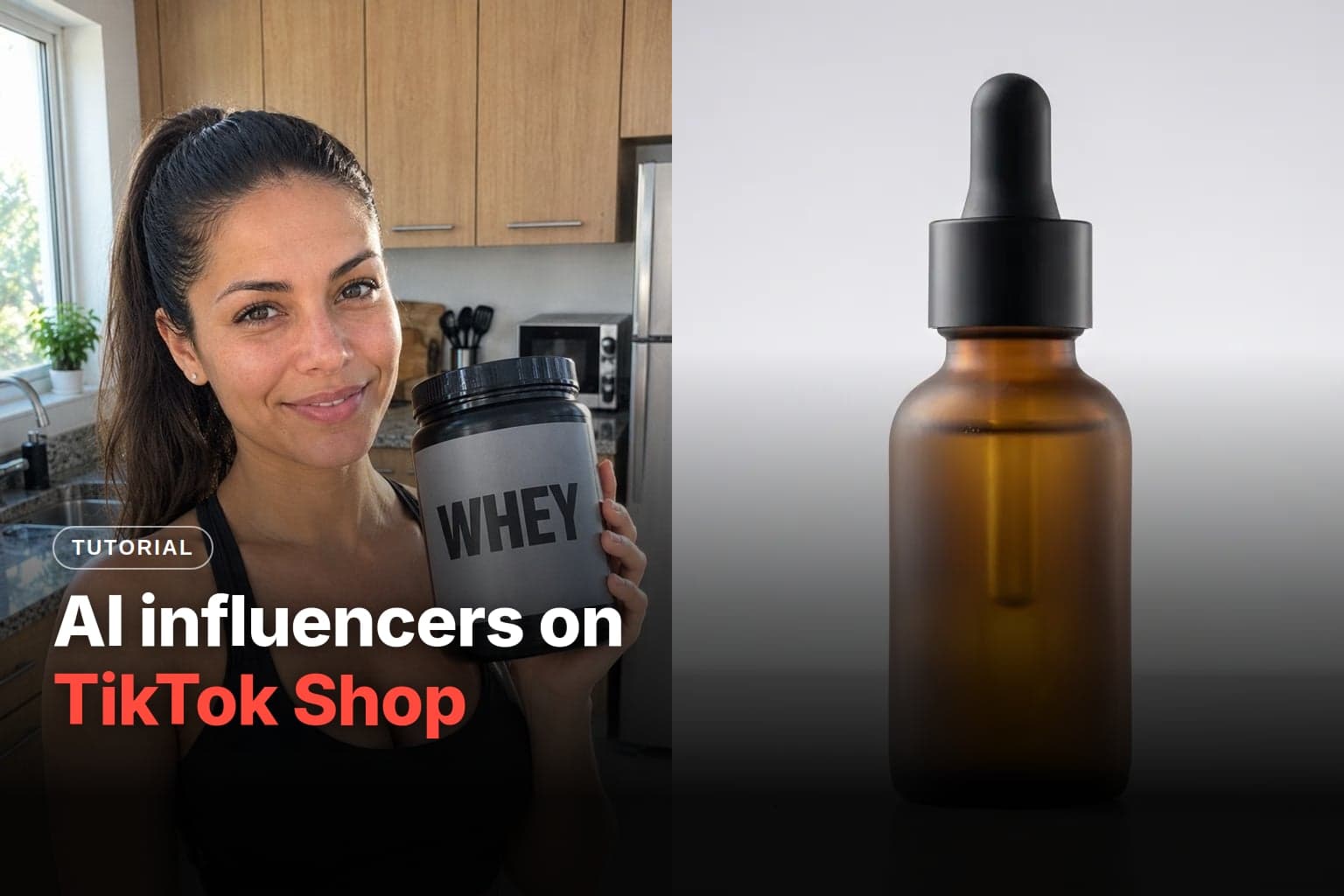
Revenue sources, costs, and the math, with no promises, are in how much an AI influencer earns. To sell on commission, the affiliate rules and the step by step are in AI influencer on TikTok Shop.
Do you have to disclose that it's AI?
On most platforms, yes. TikTok requires creators to label AI-generated content that shows realistic-looking people or scenes, and an AI influencer built to look like a real person falls right into that. YouTube asks for the same disclosure. Ad disclosure is a separate rule: it marks paid content, whether the influencer is human or AI, and it varies by country.
| Where | What it requires | Official source |
|---|---|---|
| TikTok | Label AI-generated content that shows realistic-looking scenes or people. Since May 2024, TikTok also labels on its own the AI content that comes from some other platforms with Content Credentials metadata. | Community Guidelines and auto-labeling announcement |
| YouTube | Disclose when realistic-looking content was generated or altered with AI. | YouTube Help Center |
| Instagram and Facebook | Meta shows the "AI Info" label on AI content. Since August 31, 2026, Instagram also has the AI-generated profile label, and a profile featuring an AI person without it loses reach in recommendations. | Meta Transparency Center |
| Advertising in Brazil | A paid post must be identified, with the platform's paid-content tool or with terms like #publicidade and #publi. The guide says it does not create a new disclosure rule for AI-made content. | CONAR's guide to digital influencer marketing and advertising (in Portuguese, May 2026) |
Sources checked on October 29, 2026. Platform rules change, so open the link before you set up the profile.
In practice, three habits cover it: turn on the platform's AI label when you post, say in the bio that she's a character created with AI, and mark paid posts as ads the way your country's rules require (in Brazil, with #publi). Hiding that it's AI isn't a strategy, because the platform itself can label the video for you. And an AI influencer's strength was never fooling anyone: it's the same face, post after post, without you having to show up.
The rules for each platform, with the steps to turn on the label on each one, are in the guide does an AI influencer have to disclose it's AI?.
The mistakes that hurt results the most
After running the whole process, these are the slip-ups that cost the most in credits and credibility:
- Generating without checking the reference. I got a different person and burned credits. Look at the thumbnail before you click.
- Treating the Reference Image as the final photo. It comes out looking like AI on purpose; realism comes in the Prompt tab.
- Letting the face change between posts. An influencer who changes faces builds distrust, not fans.
- Posting everything the AI generates. A good share comes out flawed. Filter, and post only what came out right.
- Uploading the wrong photo for the motion video. Neutral pose, free hands, clean background.
- Posting realistic content without the AI label. TikTok requires the label and already labels some AI content on its own. Mark it yourself first.
- Creating ten influencers at once. Master the process with one, and only then replicate it.
Guides to go deeper
- The best AI tools to create a virtual influencer: what each tool does, what it costs, and who it's for.
- How to keep the same face with AI: the methods to lock the character and a checklist to verify it.
- Prompts for a realistic AI influencer: the library by scene, ready to copy.
- Does an AI influencer have to disclose it's AI?: the rules on Instagram, TikTok, and YouTube, plus Brazil's CONAR guide.
- How much an AI influencer earns: the revenue sources and the math, with no promises.
- AI influencer on TikTok Shop: the affiliate rules and the step by step.
- Brazilian virtual influencers: the brand cases in Brazil and what to learn from them.
- AI virtual model for clothing photos: when it pays off for a store and what marketplaces accept.
Start creating your AI influencer
You generate your Reference Image in Create Influencer, remove the AI look in the Prompt tab by attaching it, build a bank of photos with the same face by always re-attaching the same reference, and take the best photo into video. Then post with the AI label, watch what the feed responds to, and only then choose how to monetize.
Frequently asked questions
No. The influencer is 100% AI-generated: the face, body, and voice come from the model and don't belong to any real person. You work behind the scenes: you decide who she is, generate the photos and videos, and publish, turning on the AI label each platform asks for.
You pay per credit. When I created Lia in June 2026, the Reference Image in Create Influencer cost 10 credits, each realistic generation in the Prompt tab 10 credits, and Skin Enhancer 18 credits. In the new character creator, a character costs 8 credits. Since a good share of generations come out flawed, count on a few generations per usable photo. Credits come from monthly plans in US dollars or from one-time extra credit packs.
With the Reference Image, yes: it comes out smooth, with an ad-campaign look. Realism comes in the Prompt tab, by asking for what exists in a real photo: window light, pores, shiny skin, loose strands of hair, and phone framing. Even with a realistic photo, TikTok and YouTube ask you to label realistic content made with AI. The goal is to look like a phone photo, not to hide that it's AI.
On most platforms, yes. TikTok requires a label on AI-generated content that shows realistic-looking people or scenes, and YouTube asks for the same disclosure. Ad disclosure is a separate rule: it applies to paid posts, whether the influencer is human or AI, and it depends on the country. In Brazil, for example, the CONAR guide asks for #publi or the platform's paid-content tool.
No. The barrier isn't technical; it's knowing what to ask for and generating in volume. Everything happens in guided tabs and prompt fields, without a single line of code in the process.
Nobody can guarantee a number. Creating the content is fast, but income depends on niche, audience, and consistency, and it only shows up after the profile grows. Be wary of anyone who promises income from an AI influencer without dated proof.